Configure account-wide preferences
This article answers the following questions:
- How to access account preferences in noCRM?
- What can be configured in the Leads preferences?
- How to configure quick actions?
- How to configure Clients & Post-Sales preferences?
- How to manage email preferences for leads?
- How to activate the business card scan on mobile?
- How to customize the homepage and navigation?
- How to hide deactivated or invited users?
- How to manage support and privacy settings?
Administrators can configure how noCRM behaves for everyone in the account from Admin Panel > Account Management > Preferences.
Leads

Configure how leads are created, displayed, and updated:
- Lead form mode — Quick mode (single text field) or Structured mode (one input per field)
- Hide the additional description field
- Set comments and lead history order
- Remove cents from lead amounts
- Hide the free tags field
- Add a custom number field and percentage field
- Display custom field totals on lead lists and dashboard widgets
- Automatically move won leads to the last step
- Display confetti when a lead is won
- Reset delay to
0 daysafter a manual activity or step change - Pre-fill the estimated closing date
- Add missing default fields when creating a lead from an email or business card
- Ignore lead titles when detecting duplicates
Quick actions
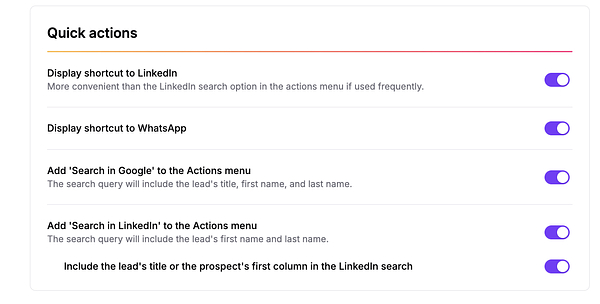
Add shortcuts and search options to lead actions:
- Display a LinkedIn shortcut
- Display a WhatsApp shortcut
- Add Search in Google to the Actions menu
- Add Search in LinkedIn to the Actions menu
- Include the lead title or prospect first column in LinkedIn searches
Clients & Post-Sales
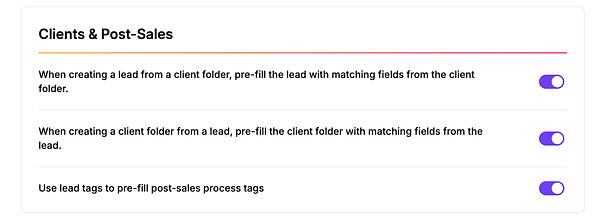
Automatically copy information between leads, client folders, and post-sales processes:
- Pre-fill a lead with matching fields from a client folder
- Pre-fill a client folder with matching fields from a lead
- Use lead tags to pre-fill post-sales process tags
Emails

Prevent emails from being automatically attached to closed leads (Won, Lost, or Cancelled).
Mobile app

Activate the business card scan feature for the mobile app.
Homepage & Navigation
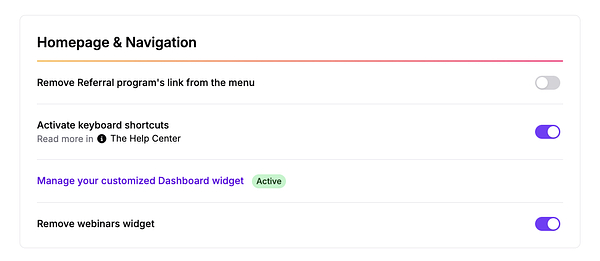
- Remove the Referral program link from the menu
- Activate keyboard shortcuts
- Manage the customized Dashboard widget
- Remove the webinars widget
Users
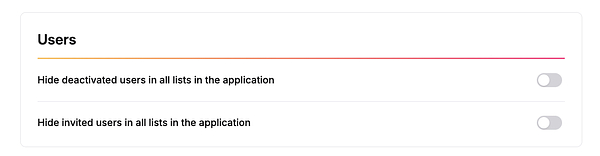
Hide from all lists in the application:
- Deactivated users
- Invited users
Support & Privacy

Choose whether your account ID is sent when usage statistics are collected.