Using noCRM's Mobile App
This article answers the following questions:
With noCRM's mobile app, you will be able to work from anywhere, at any time!
Qualify new prospects, create new leads, manage your existing leads, and collaborate with your colleagues while away from your computer.
How to find noCRM's mobile app
noCRM's Mobile App is available for download on the App Store and Google Play.
You can find it by searching for noCRM or using the QR codes below.
| App Store | Google Play Store |
 | 
|
Once the mobile app is downloaded to your smartphone or tablet, log in to your existing account.
Remember that to set up your account you need to log in from your computer, as not all the admin features are available on the mobile version. More info on how to set up your account here.
If you don't have a noCRM.io account, create a new account by following the steps below.
How to create a new noCRM account from the mobile app
If you're creating a brand new account, please fill in the form and follow the instructions.
Once logged in, you can start creating leads inside the system by clicking on the + button at the bottom of the screen.
Features available in the mobile app
The app is available offline but you need an Internet connection to sign in. However, you can update all your leads while on the go and it will sync as soon as you have an Internet connection again.
The menus
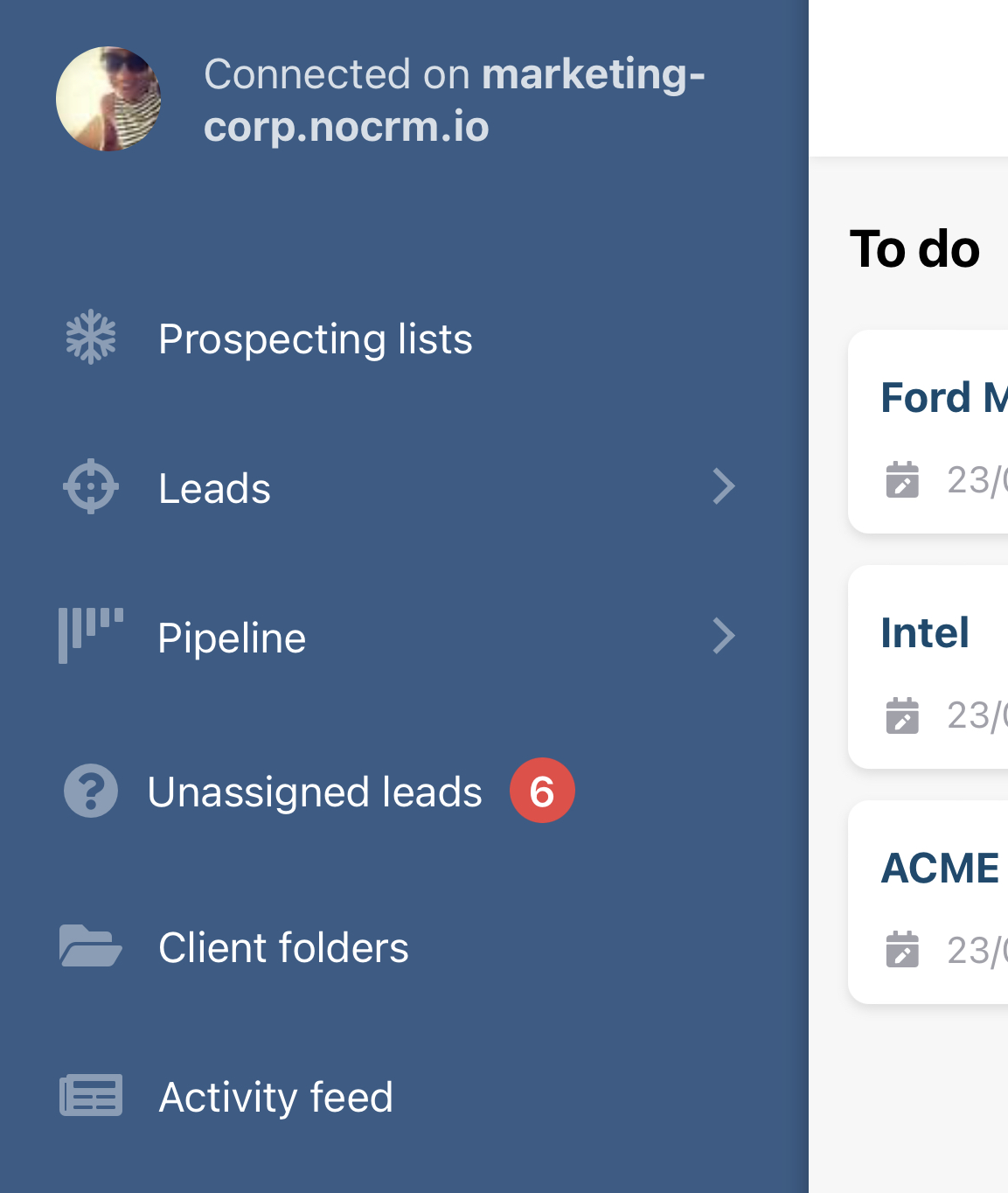
On the left you have a sidebar from which you can access different sections of the account:
- Prospecting Lists
- Leads with sections such as: "All Leads", "Your leads"...
- Pipeline view
- Unassigned leads
- Client Folders
- Activity Feed
At the bottom of the screen, you have different icons that enable you to do different things:

- The list opens the left sidebar
- The HOME button takes you to the main page listing the leads you have to work on
- The 🔍 icon allows you to look for prospects, leads, and clients
- The "+" enables you to create leads manually and from a business card
More and more companies talk to potential customers on WhatsApp and need to be able to easily call or send them a message from their lead management software.
Going in your noCRM's desktop app > Settings, you can activate the option: Add Whatsapp buttons on my noCRM mobile app. This way you will be able to fire calls and send messages through WhatsApp directly from your prospects and leads clicking on the SMS or phone icons.
When making changes in the desktop app, make sure you click on the Synchronisation button in the mobile app to see the changes you have made.
Adding a comment with Voice Recognition
With the mobile app, you can quickly add a comment to a lead using your phone’s built-in voice recognition.
This feature automatically transcribes your voice into text, helping you save time and stay focused while updating your leads.
Open the lead, tap the comment field, and use the microphone button 🎙️ on your keyboard to dictate your text.
⚠️Make sure voice dictation is enabled in your phone’s settings, as it may not be activated by default on all devices.
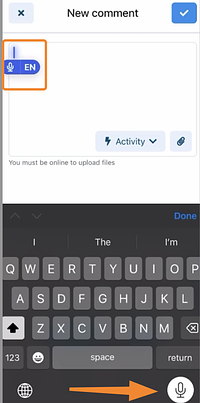
Click to watch the video HERE 🎥
You can also use voice recognition from your browser, depending on the type of computer you have. Here is the configuration for Mac and for Windows
Features that are NOT available in the mobile app
- Statistics
- Duplicate detection
- Adding comments to leads that don't belong to you, sales activities, attachments, and the search engine do not work in offline mode.
See the mobile app at work
In this short video, we show you how to create leads, manage existing leads, assign them, and collaborate with your colleagues from noCRM's mobile app.