Send WhatsApp & SMS, locate leads on Google Maps, and more
This article answers the following questions:
Custom actions empower you to tailor your lead management software to perfectly align with your unique business requirements.
Whether you need to communicate with your leads on WhatsApp or Twitter, launch Google Maps searches to organise your day, feed your information system, custom actions will allow you to enhance efficiency and improve your overall lead management activities by streamlining your sales process.
How to create custom lead actions in noCRM
To create custom lead actions in noCRM, you need to be an Admin of the account.
Go to Admin panel > Integrations >Built-in Tools> Custom lead actions.
Once there, click on “New action”, and either start from scratch or use one of our templates.
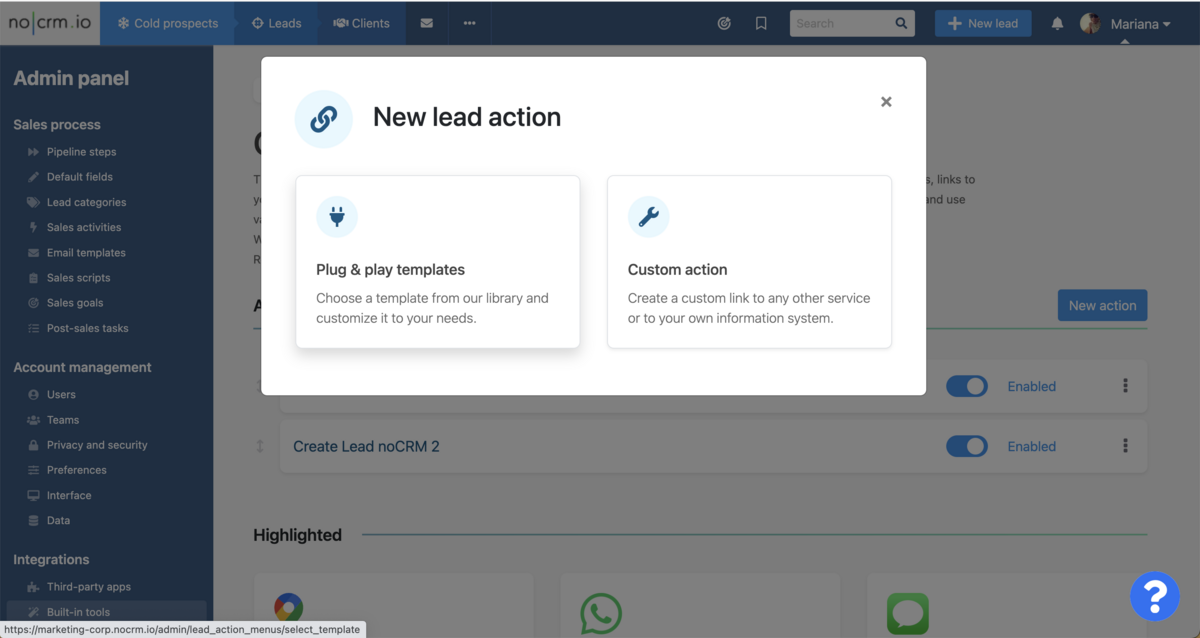
Plug & Play templates
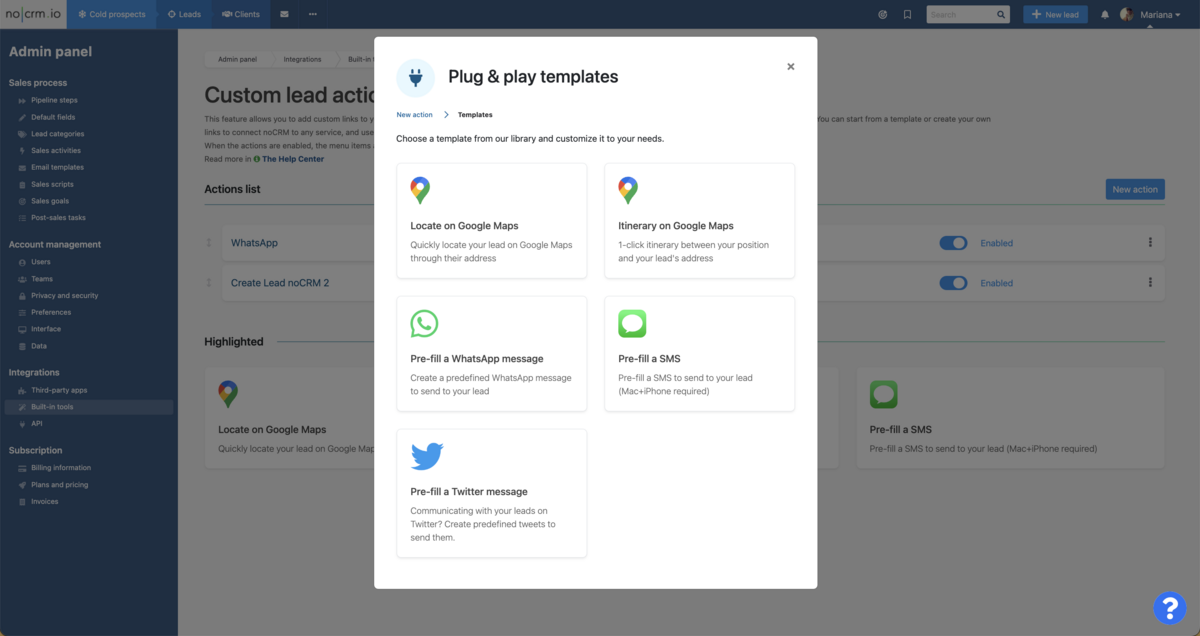
To enhance your daily workflow and empower you to take impactful actions with your leads, we have curated a comprehensive selection of Plug & Play templates. With these templates at your disposal, you can:
- Locate a lead's address on Google Maps, enabling you to visualize their location with ease.
- Calculate the itinerary between your current location and that of a lead, providing valuable insights for efficient planning and logistics.
- Pre-fill a WhatsApp message, saving you time and ensuring consistent communication with your leads. More information below.
- Pre-fill a message for posting on Twitter, allowing you to engage with your audience.
- Pre-fill an SMS (only for Mac+iPhone), enabling you to swiftly reach out to leads via text messaging.
How to set up a WhatsApp template
As mentioned above, you can easily pre-fill a WhatsApp message, saving you time and ensuring consistent communication with your leads.
Below, we explain how to configure it using Custom Action, which is the current and fastest method.
Configure a WhatsApp Custom Action
To create a WhatsApp action using the Custom Action feature, follow these steps:
1- Create the action
Click on Custom action when creating a new lead action.
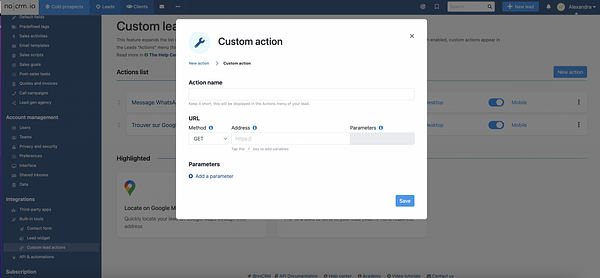
2- Name your action
In Action name, enter the name that will be displayed in the lead's Actions menu (for example: WhatsApp message).
3- Set the request method
In Method, select GET.
4- Set the WhatsApp URL
In Address (URL), enter:
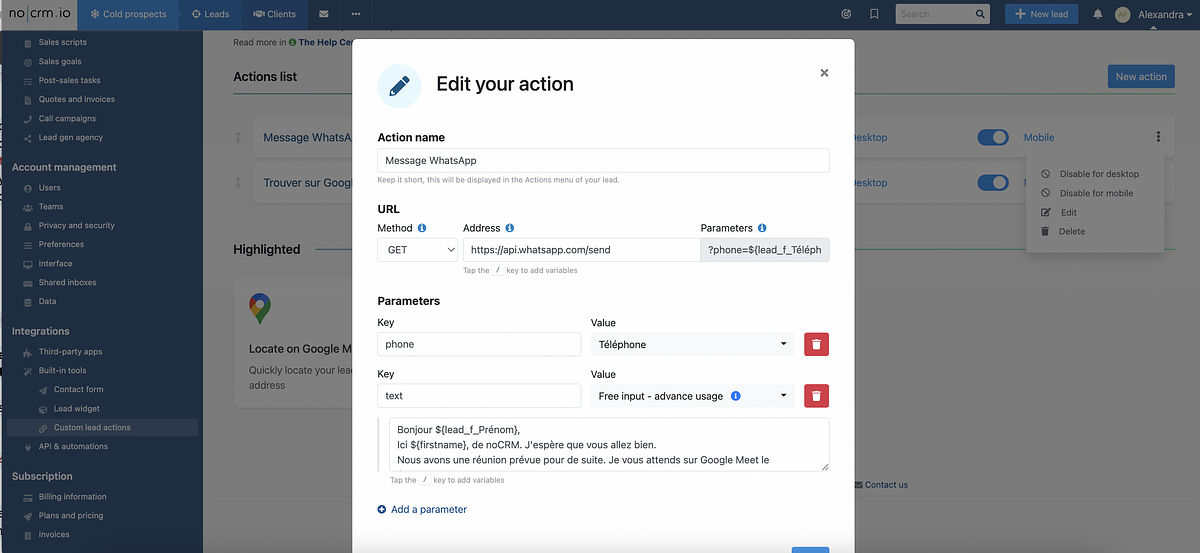
https://api.whatsapp.com/send
5- Configure the parameters
Under Parameters, add the following two keys:
Key:
phone
Value: choose the predefined phone number field from your Admin panel. This extracts the lead's phone number.Key:
text
Value: select Free input – advance usage, then type the predefined message you want to send. You can also insert variables by typing the/key.
Example configuration:
6- Save your action
Once you have completed the necessary fields, click on Save.
By following these steps, you can easily create a WhatsApp action that allows you to quickly communicate with your leads in a structured and consistent way.
Another way to send WhatsApp Messages
For an even more efficient and seamless way to manage WhatsApp conversations directly within your sales process, consider using the noCRM WhatsApp Chrome Extension, which enables you to log interactions, send pre-filled messages, and create leads directly from WhatsApp Web — without switching tools.
Learn more here: Using the noCRM WhatsApp Chrome Extension
⚠️ Make sure the phone number in your lead is written in the right predefined phone field and format — with a plus sign, the country code and without space, like this: +11111111111.
How to create brand new custom lead actions
The templates mentioned above serve as a starting point, but the possibilities are virtually endless! By opting for the "Custom Action" feature instead of relying on templates, you have the freedom to explore infinite possibilities.
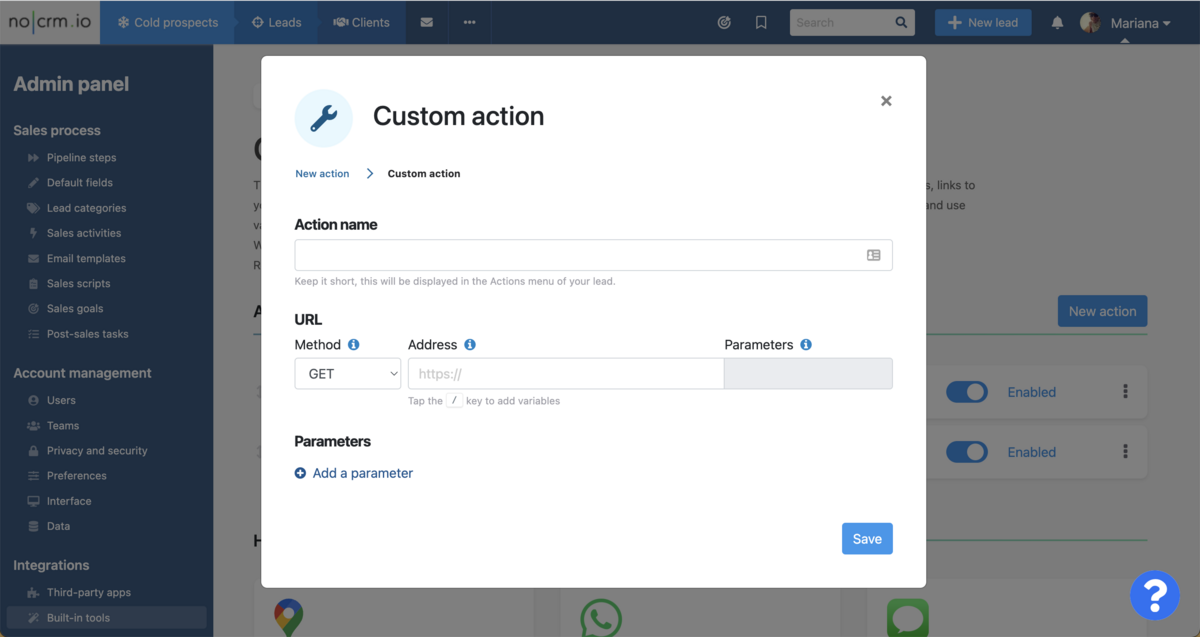
You can handpick any website or use your own information system and define the variables that align with your specific needs, enabling you to construct fully customized lead actions tailored to your unique requirements.
Should you require additional assistance or have any questions, our support team is readily available to help. Simply reach out to us through the chat feature within your noCRM account, and we'll be more than happy to provide further guidance and support.